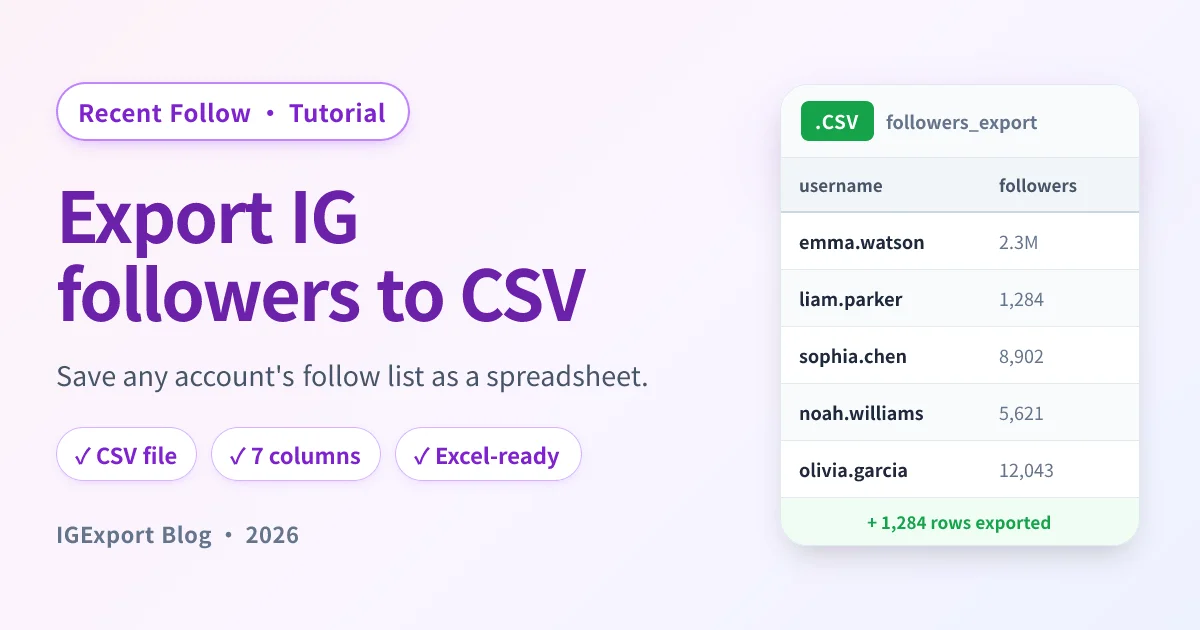
Need to export an Instagram account's followers and following list to a spreadsheet? Instagram's own app doesn't offer this — you can scroll the list on screen, but there's no built-in way to save it as a file you can open in Excel, Numbers, or Google Sheets.
This guide walks you through the full flow using Recent Follow by IGExport — type a username, fetch the list, tap Export to CSV, and you'll get a .csv file with username, full name, profile URL, follower count, and verification status for every entry.
What you'll get
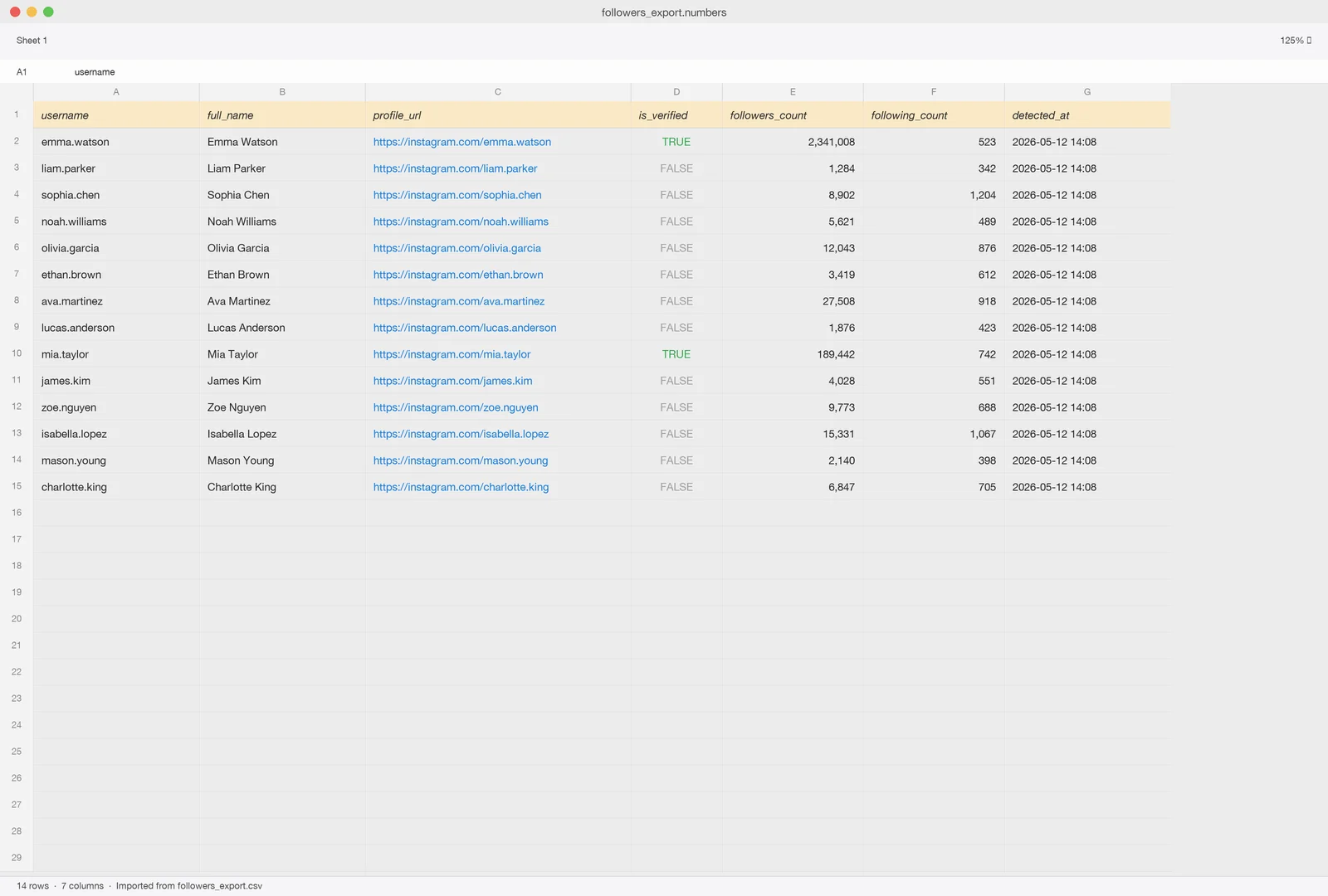
The export drops a .csv file you can open in any spreadsheet app. Here's what the file looks like once Numbers (or Excel) renders it:
The whole flow takes about two minutes for a typical account. Larger accounts (10k+ followers) may take longer to fetch.
Before you start
A few things worth knowing up front:
- Platforms: iOS and Android. Download links are in Step 1 below.
- Public accounts only, no Instagram login required: Anyone with a public profile can be exported without you signing into Instagram.
- Private accounts need authorization: To export a private account, sign in with your own Instagram inside the app — Recent Follow will only fetch data you already have access to. (This guide covers the public-account flow; the private flow is the same after sign-in.)
- Freemium: The app is free to download. Exporting the full list for large accounts requires an in-app purchase to unlock; smaller accounts can be exported without paying.
- Rate limits: Instagram limits how often the list can be refreshed, so exporting the same account back-to-back may take longer the second time.
How to export Instagram followers to CSV
Seven steps end-to-end. Each one corresponds to a single tap or scroll.
Step 1: Download Recent Follow


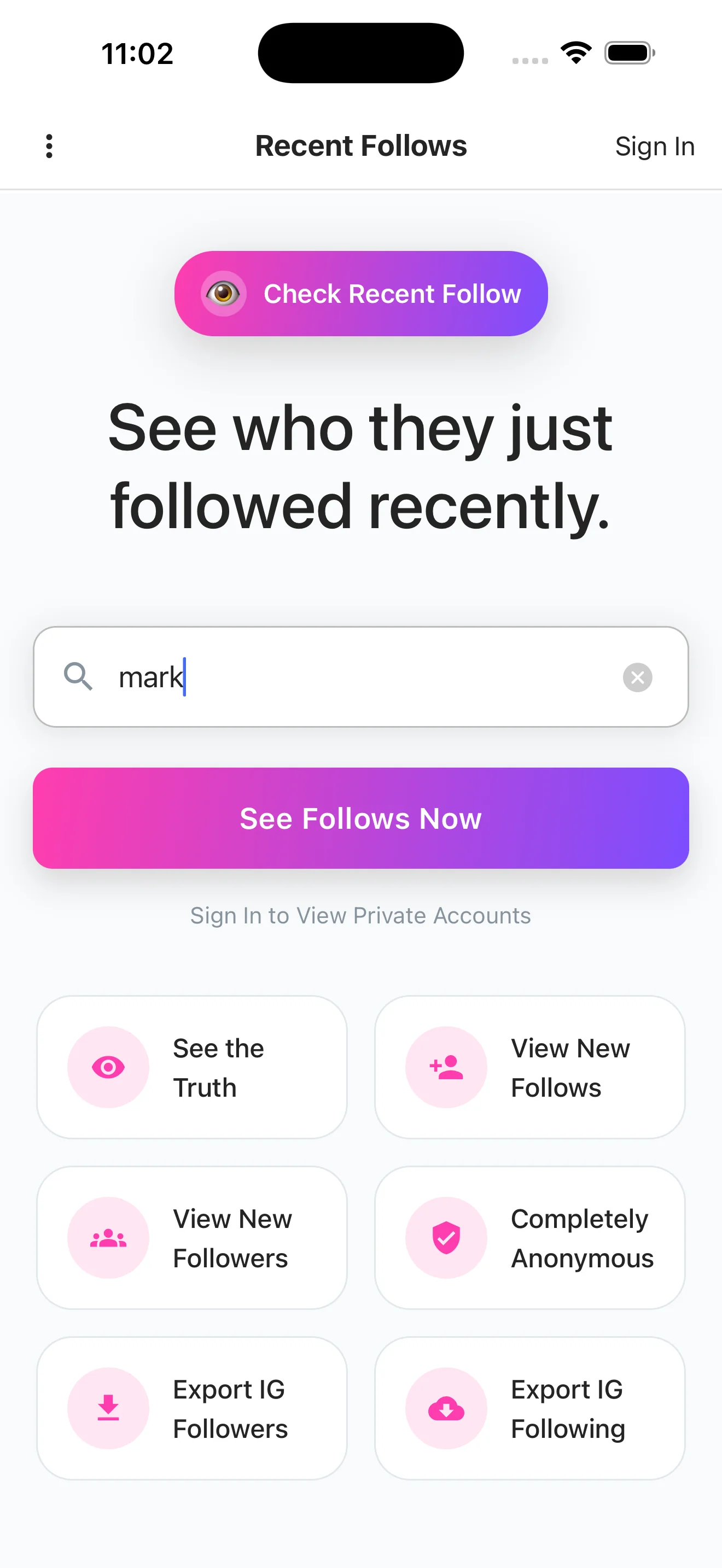
Step 2: Enter the Instagram username you want to export
Open the app and you'll land on the home screen. Type the username (without the @) into the search bar and tap Sort Following by Date.
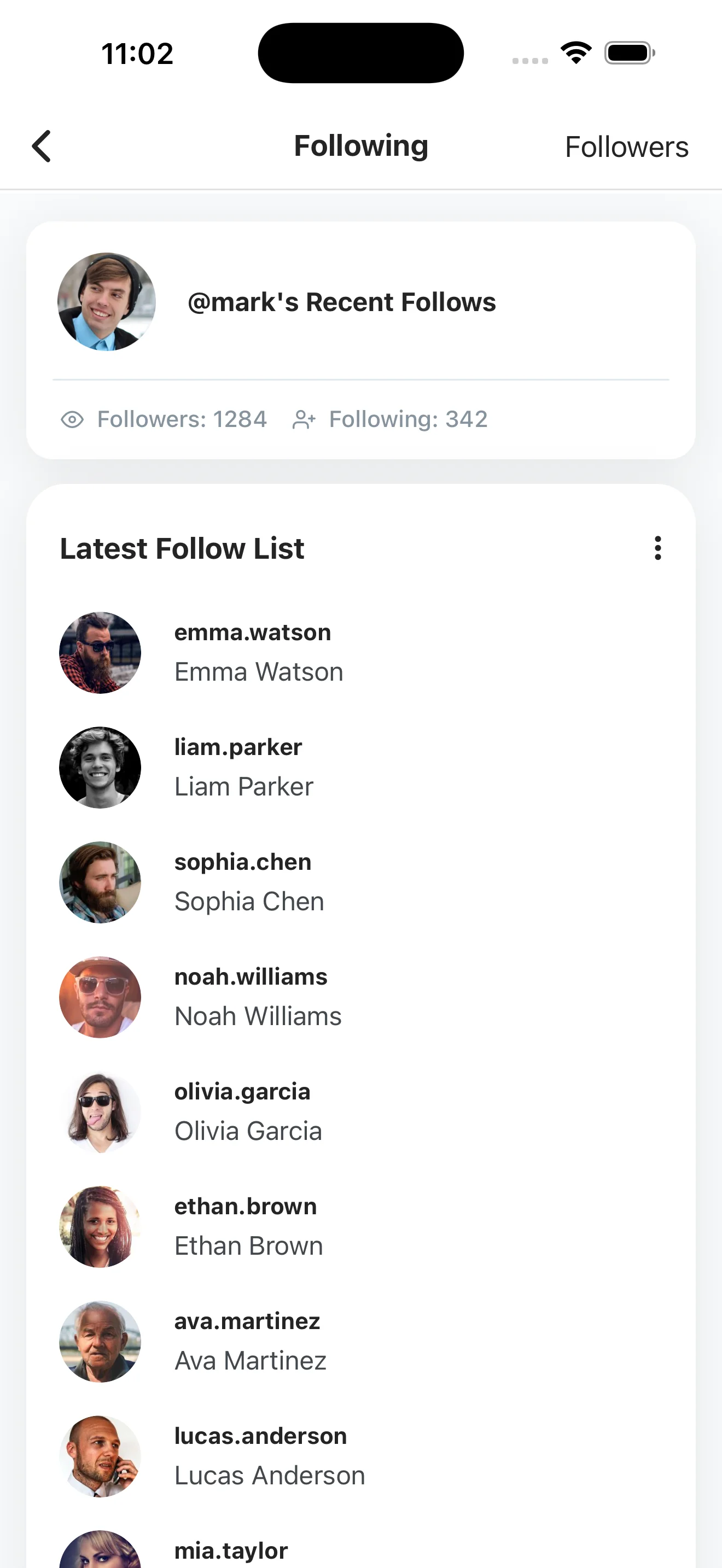
Step 3: Wait for Recent Follow to fetch the followers and following list
After a moment, you'll see two tabs — Following and Followers — both populated with the account's full list, sorted from newest to oldest activity.
Decide which list you want first. You can come back to export the other one separately.
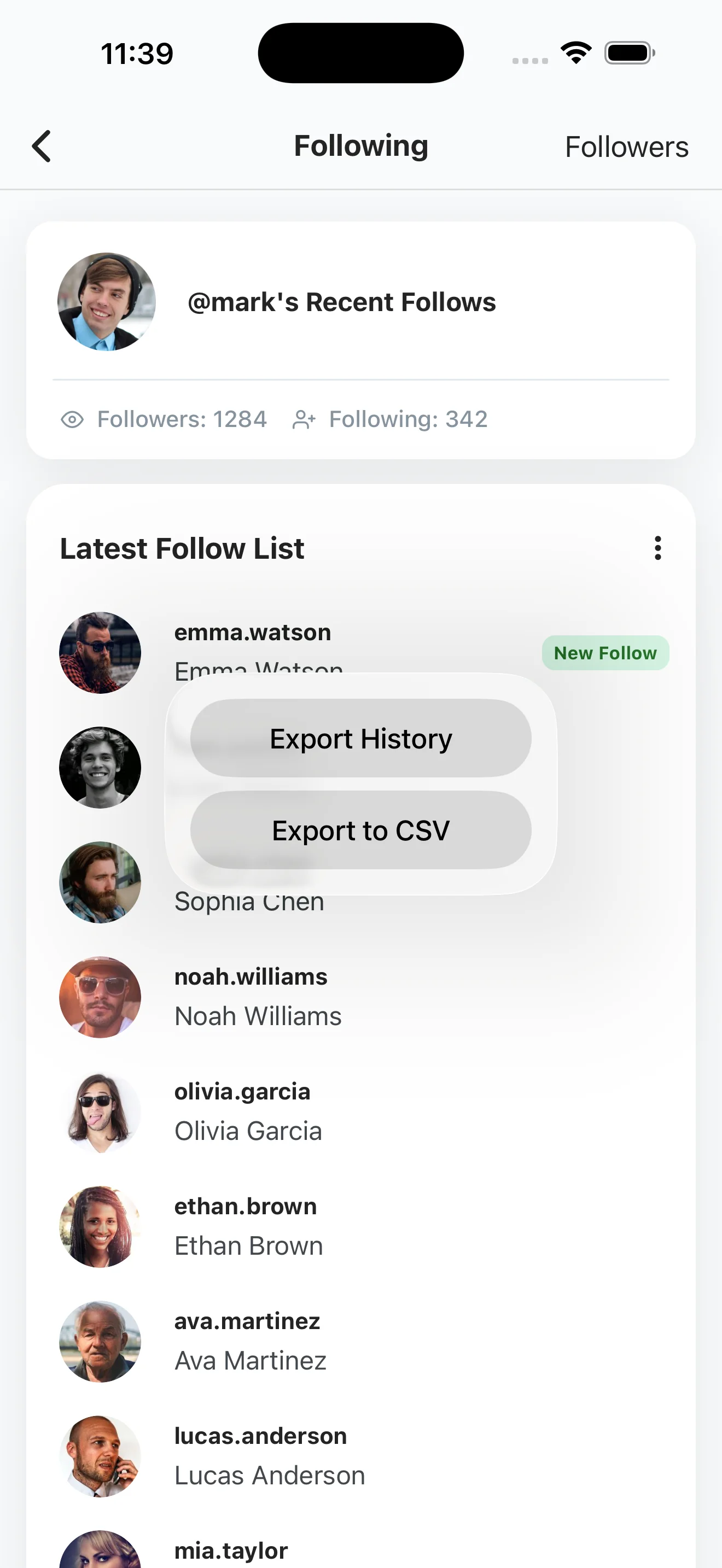
Step 4: Open the menu and tap "Export to CSV"
Tap the ⋮ menu in the top-right corner of the list. You'll see two options:
- Export History — a log of past exports for this account.
- Export to CSV — the option we want here.
Tap Export to CSV.
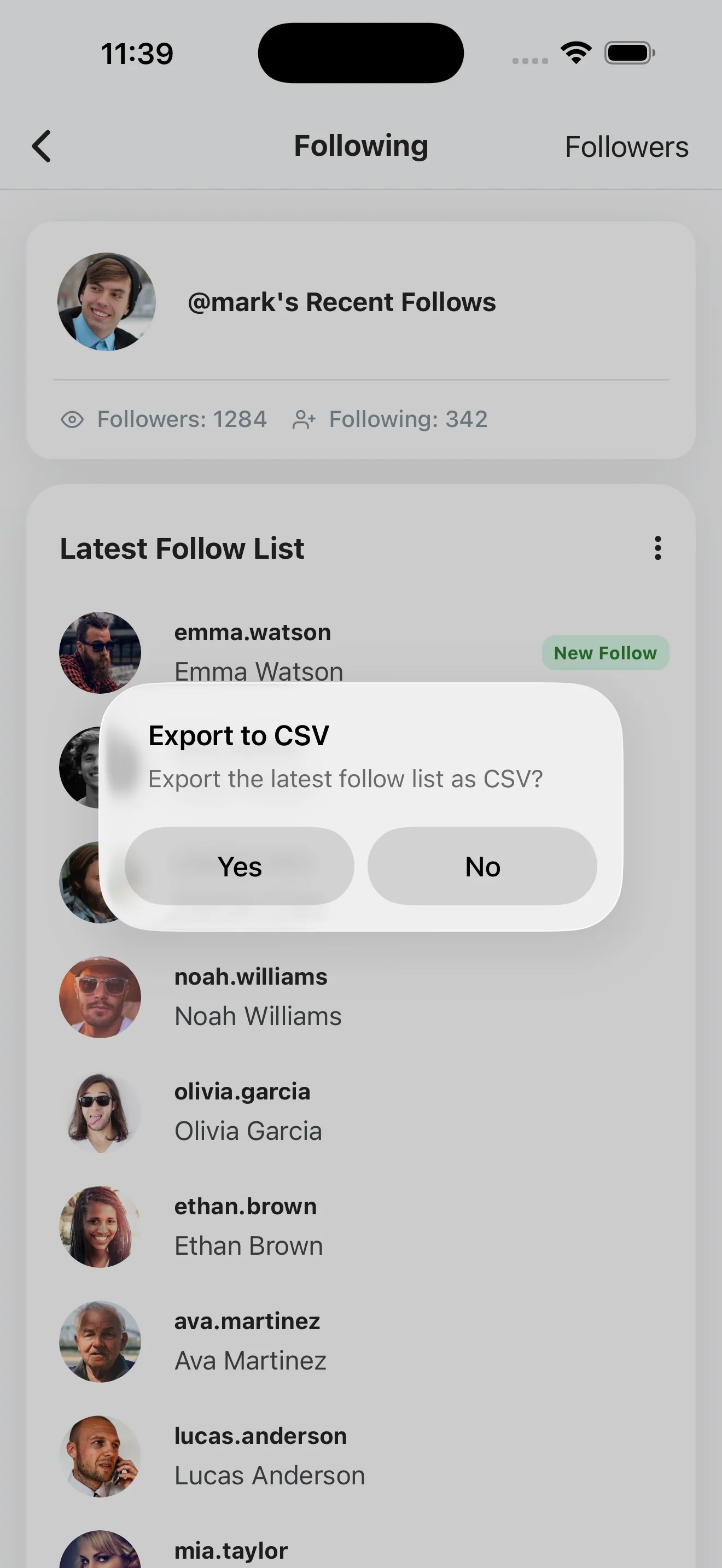
Step 5: Confirm the CSV export
A confirmation dialog asks whether you want to export the latest follow list as CSV. Tap Yes to start.
Step 6: Wait for the export to finish
Recent Follow processes the export in the background. A toast at the bottom of the screen tells you the download has started — you can keep using the app while it works.
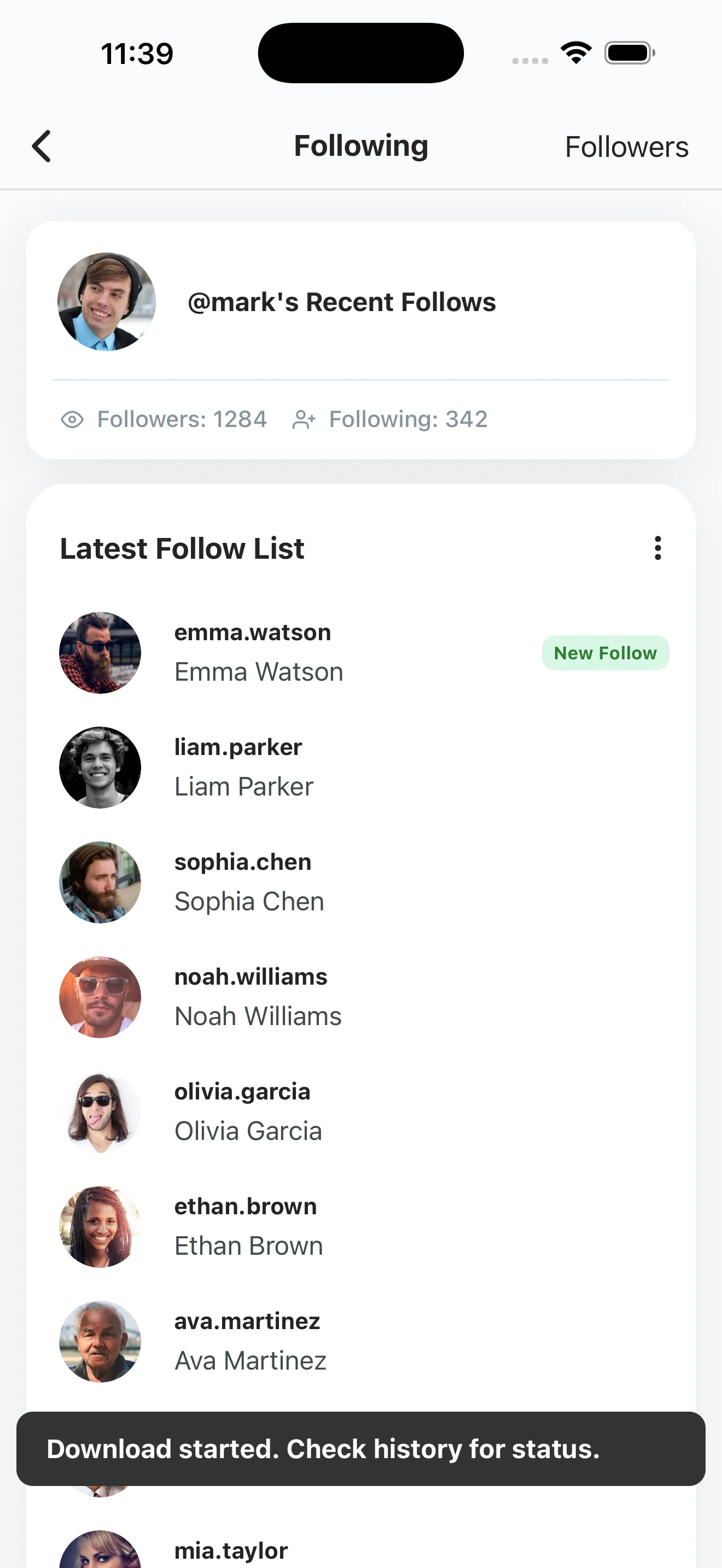
For most accounts the file is ready within a few seconds. Larger accounts (tens of thousands of followers) can take a minute or two.
Step 7: Open the CSV in Excel, Numbers, or Google Sheets
Open the finished file from Export History and tap Share (iOS) or Open with (Android) to send it to the spreadsheet app of your choice. The file will look like this in Numbers:
You can also AirDrop / share the file to your Mac or PC to work with it on a bigger screen.
What's inside the exported CSV?
Each row is one follower (or one account being followed, depending on which tab you exported). The columns:
| Column | What it is |
|---|---|
username | The Instagram handle (e.g. emma.watson) |
full_name | The display name on the profile |
profile_url | Direct link to the Instagram profile |
is_verified | TRUE if the account has the blue check |
followers_count | How many followers that account has |
following_count | How many accounts they follow |
detected_at | When Recent Follow first saw this entry in the list |
The format is plain UTF-8 CSV with a header row, so it imports cleanly into Excel, Numbers, Google Sheets, Notion, Airtable, or any database that reads CSV.
What people use the export for
A few common reasons users export follower lists:
- Backing up your own followers before switching accounts or in case of an Instagram suspension — keep a local record of who you're connected to.
- Audience auditing: spot fake / inactive followers, see how many of your follows have stopped posting, or check follower-to-following ratios at scale.
- Cleaning up who you follow: the Following export makes it easy to review the full list outside Instagram's slow UI and decide who to unfollow.
- Competitor research: see which audiences are following a competing brand or creator and find overlap with your own.
- Move to a new account: when starting a fresh account, having the old list as CSV makes it straightforward to re-follow the people you care about.
Privacy and limits
Exporting follower data is a sensitive topic. How Recent Follow handles it:
- Public account data only, unless you sign in. Looking up a public profile pulls the same data anyone could see by visiting that profile in a browser.
- The person you look up is never notified. Instagram doesn't send a notification or expose a visitor log for profile views.
- Private accounts require your own Instagram login. If you can't see their profile on Instagram, the app can't either.
- The exported file lives on your device. Recent Follow doesn't upload your export anywhere — it's yours to keep, share, or delete.
- Don't republish other people's follower lists. Public profile data is fine for personal research; mass-publishing someone else's network is a different question and may run into Instagram's Terms of Use.
Frequently asked questions
Does this work for any Instagram account?
For public accounts — yes, no Instagram login required on your end. For private accounts, you need to be logged into your own Instagram inside Recent Follow, and you can only export accounts you'd otherwise be able to see.
Will Instagram notify the account that I exported their list?
No. Pulling a public profile's followers and following is the same as visiting the profile in a browser — Instagram doesn't notify them and doesn't keep a visitor log they can see.
What format is the exported file?
Plain UTF-8 CSV with a header row. It opens directly in Excel, Numbers, Google Sheets, and any tool that reads CSV (Notion, Airtable, Python pandas, etc.).
Is there a row limit on the export?
The app is free to download; exporting the full list for large accounts requires an in-app purchase. Smaller accounts can be exported without paying. Instagram itself also rate-limits how quickly the full list can be fetched, so very large accounts take longer.
Can I export the "Following" list as well as the "Followers" list?
Yes — both tabs have their own Export to CSV option. Export them separately as two files.
How fresh is the data?
Recent Follow fetches the list live each time you search. Re-running the export pulls the current state of the account; if someone followed or unfollowed people since your last export, the new file reflects that.
Can I run the export automatically on a schedule?
Not from the mobile app today. If you want recurring snapshots, run the export manually each time and version the CSVs by date (e.g. followers-2026-05-18.csv). For most use cases — backup, audit, research — weekly or monthly snapshots are plenty.
Related reading
- IGExport — the homepage where you can also do a quick web-based export.
- Recent Follow App — the product page with full feature list, pricing, and download links.
- How to See Who Someone Recently Followed on Instagram — a different walkthrough of the same app, focused on monitoring new follows over time.