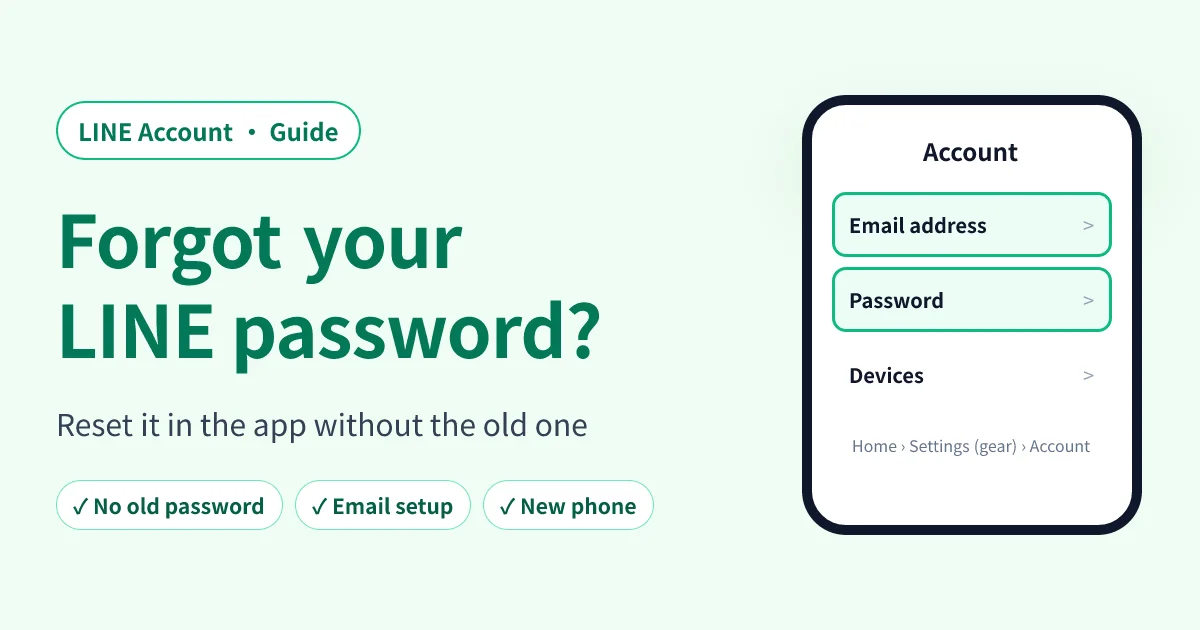
Forgot your LINE password? As long as you're still logged in to LINE on your phone, you don't need the old password. You set a new one right in the app. It takes about 30 seconds.
A lot of people didn't actually forget anything: they never set one up. If you signed up for LINE with your phone number, your email address and password start out empty. You only notice when LINE for PC, an iPad, or another service asks you to "log in with your LINE email". Both are set on the same screen.
Which situation are you in?
| Your situation | What to do |
|---|---|
| LINE works on your phone, you just forgot the password | Set a new password. No old password needed |
| You never registered an email address | Register your email first, then set a password |
| LINE says to turn on "Log in with password" | Turn on "Log in with password" |
| You forgot which email you registered | Check it on the Account screen |
| You switched phones and the old one is gone | Use "Forgot your password?" in the transfer flow to get a reset email |
Open LINE's Account settings in one tap
Tap this link on your phone and LINE opens straight to the Account settings screen:
This link comes from LINE's official developer documentation and only works in the LINE app for iOS and Android. On a computer it just opens LINE's website.
To get there manually: Home › gear icon (Settings) › Account. It's the same on iPhone and Android.
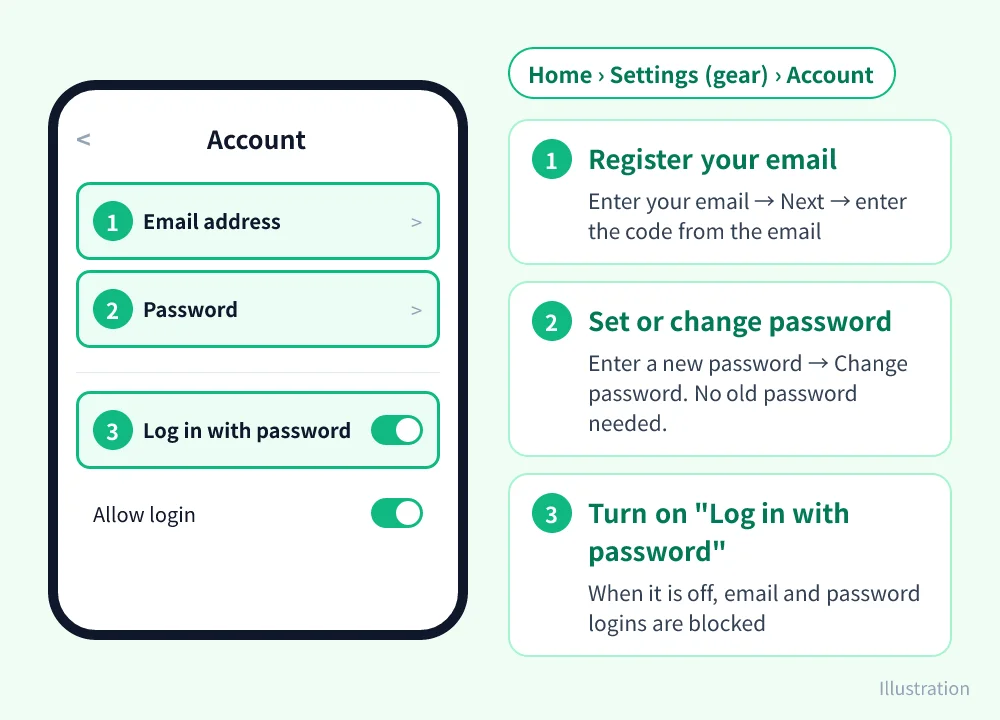
Reset your LINE password (no old password needed)
Step 1: Open Account in LINE
Use the link above, or go to Home › gear icon › Account.
Step 2: Tap "Password"
Some phones first ask you to unlock with the phone's own method (Face ID, fingerprint or device passcode). That's your phone's lock, not your LINE password.
Step 3: Enter the new password twice and tap "Change password"
You don't have to type the old password. The rules are:
- 8–20 single-byte characters
- A mix of at least 3 of: uppercase letters, lowercase letters, numbers, symbols
- No runs of the same character
After you save it, LINE only shows whether a password is set. You can never view the password again, so save it in a password manager.
Register your email address
Your email address and password work as a pair. LINE for PC, iPad and any service that asks for your LINE email need both, and if you ever forget your password while switching phones, the reset email can only go to this address.
Step 1: On the Account screen, tap "Email address"
Step 2: Enter your email and tap "Next"
Make sure there's no space before or after it, or registration fails.
Step 3: Enter the code from the email
LINE sends an email titled "LINE Email Address Verification Message". Enter the code from it in LINE (or tap the link in the email) and you're done.
If the email doesn't arrive:
- Check your spam folder
- If you filter incoming mail, allow the
line.medomain - Double-check the address for typos
⚠️ An email address can only be registered to one LINE account. If you register the same address to a different LINE account, it's removed from the original one.
Turn on “Log in with password”
If your email and password are set but logging in shows a message like "To use email and password login, turn on [Log in with password] in Settings > Account in LINE for smartphones", this setting is off:
- In LINE on your phone, open Home › gear icon › Account (or use the link above)
- Turn on "Log in with password"
- Go back and log in again with your email and password
When this is off, sub devices such as LINE for PC and iPad can only log in with biometrics (face, fingerprint) or a QR code, so any login that asks for your LINE email and password is blocked. Turning it on or off doesn't log out devices you're already logged in to.
Forgot which email you registered?
On your phone, open Home › gear icon › Account › Email address. Your registered address is shown there; if it's cut off, tap it to see the whole thing.
New phone, old phone unavailable
If you've switched to a new phone and can't open LINE on the old one anymore, the only way back is a reset email to the address you registered. On the new phone:
- Open LINE and tap "Log in"
- Tap "Log in with another method" → "Log in with phone number" and complete the SMS verification
- When your account appears, tap "Yes, that's my account"
- On the password screen, tap "Forgot your password?"
- Enter your registered email and open the email "[LINE] Password reset for LINE"
- Back in LINE, check "I have confirmed the password reset email", tap "Continue" and set a new password
If you don't remember the address, entering a wrong one in step 5 brings up "Forgot your email address?". Tap it and LINE shows part of your registered address as a hint (LINE 14.8.0 or later).
LINE's Help Center lists this flow for Hong Kong, Japan, Korea, Taiwan and Thailand. In other regions the screens may differ.
⚠️ If you still have the old phone, set your email and password on it before you switch. That's the safest route. If the old phone is gone and you never registered an email, you can't receive a reset email. If you linked an Apple or Google account under Account, you can log in with that on the new phone instead. Without any of these, LINE's Help Center doesn't offer another self-service way to recover the account.
Set it up but still can't log in? Check these
- Typos: a space before or after, full-width characters, wrong letter case, mixing up 1/I/l or 0/o. Typing it into a notes app first and pasting it helps.
- Your email isn't verified yet: registration only finishes once you enter the code from the verification email.
- You just switched phones: for 24 hours after an account transfer you can't change your email or password. Try again the next day.
- New logins need a verification code: when you log in with your email somewhere new, LINE on your phone shows a confirmation screen where you enter the code displayed on the login page. That's LINE's two-step verification, not an error.
- Can't log in on PC or iPad: make sure Account › Allow login is turned on in LINE on your phone.
- LINE says to turn on "Log in with password": turn on Account › Log in with password; see the section above.
Also note: when you change your email or password on your phone, LINE for PC, iPad and other secondary devices are logged out automatically. Log in again with the new password. LINE on your phone and your chat history aren't affected.
If you came here from the LINE Block Checker web login page: once you're set up and "Log in with password" is on, go back to the login page and log in with the email and new password you just set. LINE on your phone will ask you to confirm with a code; just follow the screen.
Frequently asked questions
Can I see my LINE password?
No. LINE has no way to display your password; the settings screen only shows whether one is set. If you forgot it, set a new one with the steps above. You don't need the old one.
Do I need my old password to change my LINE password?
No. As long as you're logged in to LINE on your phone, go to Account › Password and enter a new one. Some phones ask for Face ID, a fingerprint or your device passcode first; that's the phone's lock, not your LINE password.
Will changing my password log me out or delete my chats?
LINE on your phone stays logged in and your chat history isn't touched. LINE for PC, iPad and other secondary devices are logged out automatically; log in again with the new password.
LINE says to turn on "Log in with password". What does that mean?
Your account has "Log in with password" turned off, which blocks email-and-password logins on sub devices. In LINE on your phone, go to Home › gear icon › Account, turn on "Log in with password", then log in again.
What are LINE's password rules?
8–20 single-byte characters, mixing at least 3 of uppercase letters, lowercase letters, numbers and symbols, with no runs of the same character.
Can I set a password without registering an email?
They're set separately, but anywhere you log in with your email (LINE for PC, iPad, or services that ask for your LINE email and password) you need both. And if you forget your password while switching phones, the reset email can only go to this address, so set both.
I switched phones, forgot my password and never registered an email. What now?
If the old phone still works, set your email and password there first, then transfer. If the old phone is gone and you have no registered email, you can't get a reset email. If you linked an Apple or Google account you can log in with that; otherwise LINE's Help Center offers no other self-service recovery.
Related reading
- How to Know If Someone Blocked You on LINE: 6 Clear Signs
- How to Tell If Someone Blocked You on LINE with LINE Block Checker
- LINE Block Checker: see everyone who blocked you in one scan
- How to Unblock Someone on LINE
Sources: LINE Help Center: registering, checking and changing your email address and password, LINE Help Center: how logins with biometric information work, LINE URL scheme documentation