"Hide reposts" means three different things on Instagram, and only one of them has a switch:
- Stop other people from reposting your posts and Reels. There's a setting for this, and it takes about ten seconds.
- Hide the reposts you made from people looking at your profile. There's no hide button. You remove them, or you make your account private.
- Get rid of the repost button so you stop hitting it by accident, or stop seeing other people's reposts. Instagram doesn't let you do either.
This guide walks through all three, plus how to check exactly what a stranger sees on your Reposts tab right now.
Quick answer
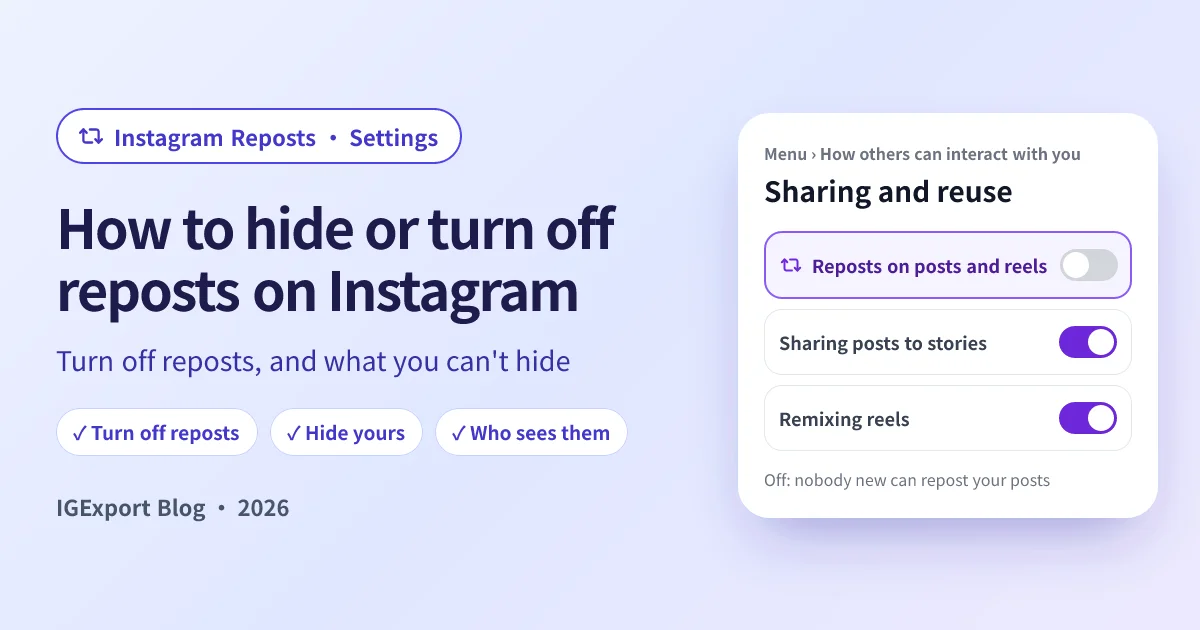
- Turn off reposts of your content: Profile → Menu (three lines) → Sharing and reuse (under How others can interact with you) → turn off Reposts on posts and reels.
- Hide your own reposts: a public account can't hide its Reposts tab. Remove the reposts you don't want seen, or switch to a private account so only approved followers see them.
- Check what others see: run your username through the Instagram Repost Viewer. It shows your Reposts tab the way a logged-out stranger sees it.
How to turn off reposts on Instagram
This stops other people from reposting your posts and Reels. It's the setting Instagram's own Help Center describes in Stop allowing others to share your posts on Instagram.
Step 1: Open your profile menu
Tap your profile picture in the bottom-right corner of the app, then tap the Menu icon (three lines) in the top-right corner.
Step 2: Go to Sharing and reuse
Scroll down to the section called How others can interact with you and tap Sharing and reuse. Older versions of the app may label it just Sharing.
Step 3: Turn off reposts on posts and reels
Switch off Reposts on posts and reels (some versions call it Allow reposts). From now on, the repost button no longer appears for other people on your posts and Reels.
A few things this setting does and doesn't do:
- It applies to everything you've posted, not one post at a time.
- It stops new reposts. Reposts people made before you switched it off can stay on their Reposts tabs. If one of them bothers you, the dependable fix is to archive or delete your original post: a repost has nothing left to show once the original is gone.
- It doesn't stop screenshots, re-uploads or Story shares. Sharing a post to a Story has its own toggle in the same Sharing and reuse screen.
- Private accounts don't need it. Posts from a private account can't be reposted at all.
To turn reposts back on, go to the same screen and flip the switch on again.
How to hide the reposts you made
Here's the part that surprises people: a public account has no setting that hides its Reposts tab. Anyone who can open your profile can tap that tab, including people who don't follow you and anyone using an outside viewer.
So "hiding" your reposts comes down to one of these:
- Remove the reposts you don't want seen. Open one from your Reposts tab and tap the repost icon again, or delete several at once from Menu → Your activity → Reposts → Select. The full walkthrough is in How to Undo a Repost on Instagram.
- Make your account private. Then only the followers you approve can see your Reposts tab. The trade-off is that people can no longer repost your posts either, and everything else on your profile goes private with it.
- Stop reposting and share to a Close Friends Story instead. If you want to pass something along to a few people, a Story shared with your Close Friends list reaches only them and disappears after 24 hours.
Can you hide reposts from specific followers?
No. Stories have a "Hide story from" list; reposts don't. If one person shouldn't see your reposts, your options are the same as for the rest of your profile: go private and remove them as a follower, or block them.
Check what strangers see on your Reposts tab
After you've cleaned up, it's worth looking from the outside. Type your own username into the Instagram Repost Viewer: it loads your Reposts tab without any login, the same way a stranger would see it. If something you removed still shows, give it a few minutes and check again.
Can you remove the repost button?
Not on other people's posts. The repost button sits right next to the share button under every public post and Reel, and plenty of people tap it by accident (The New York Times wrote a whole piece about it in December 2025). Instagram has no setting that removes it from your feed.
What you can do:
- Undo an accidental repost straight away: tap the same button again on that post. It turns off the repost and takes it off your profile.
- Remove the button from your posts for other people, with the Sharing and reuse setting above.
There's also no setting to stop seeing other people's reposts in your Feed. If one account's reposts are filling your Feed, muting their posts is the closest option, though Instagram doesn't promise that muting covers reposts too.
Do your reposts show up in the Friends tab in Reels?
They can. Reels has a Friends tab that surfaces public posts and Reels your friends have interacted with, and reposts are part of that activity. Instagram gives you a privacy control over whether your activity appears there; the wording changes between app versions, so look for it in your privacy settings if you'd rather keep your reposts out of friends' Reels.
When it's someone else's reposts you're curious about
Most people looking for this setting are cleaning up their own profile. But if what got you here is seeing what someone reposted, that's a different tool: Recent Follow by IGExport shows the reposts of any public account you look up inside the app, next to the accounts they followed most recently, and can notify you when they follow someone new.

Frequently asked questions
How do I turn off reposts on Instagram?
Go to your profile, tap the Menu (three lines), open Sharing and reuse under "How others can interact with you", and turn off Reposts on posts and reels. Other people will no longer see the repost button on your posts and Reels.
Can you turn off reposts on Instagram?
Yes, for your own content. The Sharing and reuse setting stops other people from reposting your posts and Reels. What you can't turn off is the repost button on other people's posts in your own Feed.
How do I turn reposts back on, or allow reposts?
Open the same screen (Menu → Sharing and reuse) and switch Reposts on posts and reels back on. The repost button reappears on your public posts and Reels.
Can I hide my Reposts tab on Instagram?
Not on a public account. There's no setting that hides the tab. You can remove the reposts in it, or make your account private so only approved followers can see it.
Can people see my reposts if my account is private?
Only your approved followers can. A private account's Reposts tab is hidden from everyone else, and no outside website can show it.
Does turning off reposts remove reposts people already made?
Not necessarily. It stops new reposts. If an existing repost of your post bothers you, archive or delete the original post, which leaves the repost with nothing to show.
Can you see who views your reposts on Instagram?
No. Instagram keeps no list of who saw your reposts or opened your Reposts tab. Apps and sites that promise a "repost viewers" list are scams.
Will someone know if I turn off reposts?
No. Nobody is notified. People simply stop seeing the repost button on your posts.
Related reading
- Instagram Repost Viewer: check what strangers see on your Reposts tab, or see anyone else's reposts without logging in
- How to See Reposts on Instagram: where reposts go, who can see them, and why a Reposts tab can be empty
- How to Undo a Repost on Instagram: unrepost one post or delete all your reposts at once
- How to See Who Reposted Your Post on Instagram: what Instagram tells you when someone reposts you